
Table of Contents
About The Project
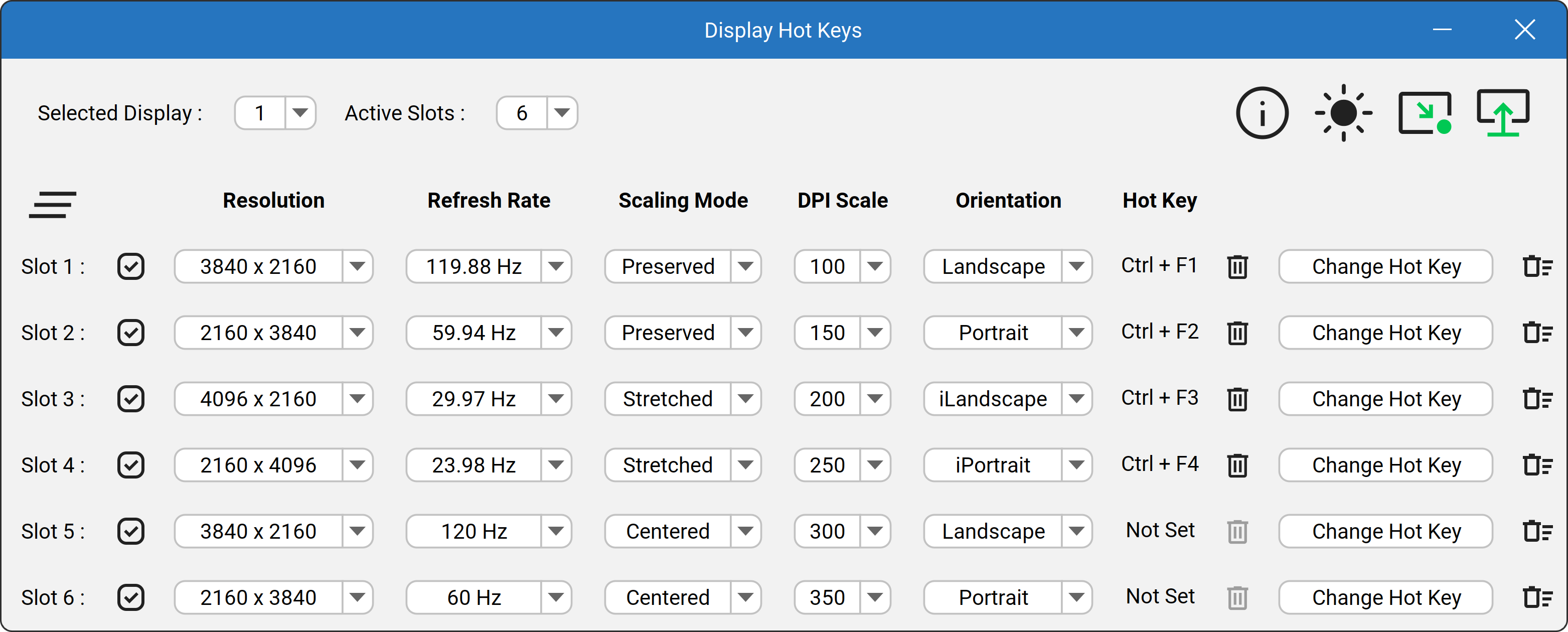
This project was created to circumvent the tedious navigation of the Windows settings menus to change display settings. With Display Hot Keys, the display resolution, refresh rate, scaling mode, DPI scale percentage, and orientation can be changed for each connected display with user-defined hot keys.
Common Use Cases
-
Switch refresh rates to quickly enable the Black Frame Insertion or Backlight Strobing capabilities of the display.
-
Easily rotate the display orientation with hot keys.
-
Quickly switch between resolutions with different aspect ratios.
-
Immediately apply a resolution without entering the in-game menus for video game benchmarking purposes.
-
Enlarge or shrink the elements on screen by instantly changing the DPI scale percentage.
-
Instantly set resolution and refresh rate while in a video game if it does not support changing these settings while in-game.
-
Retain your intended display arrangement while changing display resolutions.
-
Change settings for multiple displays at the same time with one hot key press.
Getting Started
This application was made only for the Windows platform. Display Hot Keys also uses elevated privileges to set display settings while in video games and when an app with elevated privileges has focus. Therefore, if you have UAC enabled, you will get a UAC prompt the first time you launch the application. That first launch registers a Windows task that starts Display Hot Keys with the privileges it needs, so every launch after that starts the application without a UAC prompt. The sections that follow will help you get the application up and running on your PC!
Note: Always start Display Hot Keys from the shortcut created by the installer, or from DisplayHotKeysLauncher.exe in the install directory. Only the launcher can start the application through the Windows task, which is what avoids the prompt. Starting DisplayHotKeys.exe yourself asks Windows for elevated privileges directly, so it prompts every time no matter how often you run it.
Note: Registering the Windows task requires administrator rights. If you are signed in with a standard user account, the task cannot be registered and you will get a UAC prompt on every launch. If you no longer wish to see this prompt, you can disable UAC.
Prerequisites
- Native Windows 10 x64 or Windows 11 x64 operating system installation. Running the app through virtualization software is not fully supported.
Installation
This application will be distributed as a portable package and as an installer. Only one of either the portable package or installer is needed.
Portable
-
Download the zip archive.
-
Unzip the archive.
-
Double-click the DisplayHotKeysLauncher executable file or create a shortcut to the launcher to run the application.
Installer
-
Download the installer.
-
Run the installer.
-
Follow the installer prompts.
-
Double-click the created shortcut or the DisplayHotKeysLauncher executable file in the install directory to run the application.
Usage
Setting Hot Keys
-
Click the “Change Hot Key” button.
-
Press the key combination for the hot key. (Up to three keys can be used!)
-
Release at least one of the keys to set the hot key.
Note: A hot key cannot be a subset of another hot key. For example, you cannot have a hot key of “Ctrl + F1” and another hot key of “Ctrl + Shift + F1”. However, a hot key can be the same as another hot key if they are for different displays. This will allow you to apply display settings for multiple displays with one hot key!
Changing the Selected Display
-
Click the “Selected Display” drop-down box.
-
Select the display number you want to change hot keys for.
Note: The application will automatically detect newly disconnected and connected displays, and the application will refresh to reflect the display configuration change.
Changing the Number of Active Hot Key Slots for a Display
-
Click the “Active Slots” drop-down box.
-
Select one of the values.
Note: There can be up to 12 active hot key slots for each connected display.
Selecting Display Settings
-
Select a resolution value in the “Resolution” drop-down box for the hot key slot.
-
Select a refresh rate value in the “Refresh Rate” drop-down box for the hot key slot.
-
Select a scaling mode value in the “Scaling Mode” drop-down box for the hot key slot.
-
Select “Preserved” to preserve the aspect ratio of the image.
-
Select “Stretched” to stretch the image to the edges of the panel.
-
Select “Centered” to center the image in the middle of the panel without scaling.
-
Note: You may need to use GPU Scaling in your display driver settings to prevent the display from overriding the scaling mode.
-
Select a DPI scale percentage value in the “DPI Scale” drop-down box for the hot key slot.
-
Select a display orientation value in the “Orientation” drop-down box for the hot key slot.
-
Select “Landscape” for a landscape orientation of no rotation.
-
Select “Portrait” for a portrait orientation of 90 degrees rotation.
-
Select “iLandscape” for an inverted landscape orientation of 180 degrees rotation.
-
Select “iPortrait” for an inverted portrait orientation of 270 degrees rotation.
-
Note: Make sure you can rotate your display before changing the orientation; otherwise, it may be difficult to operate your computer.
Button Interaction
Apply Slot
The display settings can be immediately applied by clicking on the “Apply Slot” button for a hot key slot.
Clear Hot Key
Individual hot keys can be cleared by clicking on the “Clear Hot Key” button for a hot key slot when a hot key is set.
Clear Slot
Individual hot key slots can be reset by clicking on the “Clear Slot” button for a hot key slot.
Clear All Slots
All hot key slots for the selected display can be reset by clicking on the “Clear All Slots” button.
About App
Opens a window to display the current version, PayPal donate button, license button, and releases button.
Change Theme
The theme can be changed between “Light Mode” and “Dark Mode” by clicking on the “Change Theme” button. The icon will change to indicate the current theme.
Run On Startup
The application can start automatically when the user logs into Windows by clicking on the “Run On Startup” button. The arrow will turn green to indicate that this option is enabled.
Minimize To Tray
The application will be minimized to the system tray when the “Minimize To Tray” button is toggled on. To restore the application, click the system tray icon and select “Restore”.
PayPal Donate
If you find the application useful and wish to donate, the “PayPal Donate” button will open a PayPal donation web page.
Releases
Opens a web page in the default browser to display the releases for Display Hot Keys in descending order.
Roadmap
- Release the initial build.
- Add scaling mode selection.
- Add multi-display support.
- Add display orientation selection.
- Add button to immediately apply display settings.
- Add a minimize to tray toggle.
- Add ability to change display orientation with hot keys.
- Add an “About” view to display current app information.
- Add support for virtual displays and display duplication.
- Add event-driven display configuration detection.
- Add clearing of individual slots.
- Add exact refresh rate support.
- Split display mode into resolution and refresh rate.
- Add a latest version check in the “About” view.
- Create a custom system tray implementation.
- Create a custom input hook implementation.
See open issues for a full list of proposed features (and known issues).
License
Distributed under the MIT License. See LICENSE.txt for more information.
Contact
Jonathan R. Miller - jonRock1992@gmail.com
Dependencies
Distribution made possible with the following tools:
Antivirus Notice
An antivirus engine may flag Display Hot Keys as malicious. This is a false positive. Display Hot Keys contains no malware.
These detections come from machine-learning heuristics rather than signatures matching known malware. Such heuristics tend to distrust small, independent utilities that legitimately need low-level system access — which is exactly what Display Hot Keys requires.
Why it gets flagged
-
The executable is not yet code-signed — An unsigned binary is the single strongest trigger for these heuristics.
-
Low reputation / low prevalence — Newly released or freshly built binaries have no download history, so reputation-based scanners treat them as unknown.
-
It installs a global keyboard hook — The core hot key feature requires a keyboard hook, which heuristics can mistake for keylogger behavior.
-
It requests administrator elevation — Elevation is needed so hot keys work over full-screen games and other elevated applications.
-
It registers to optionally run at startup — The app supports optionally launching at startup, but scanners weigh any startup entry as persistence.
-
It’s a packaged Java application bundling native libraries — Native launchers that load a runtime and native DLLs pattern-match to “packed” software.
None of these are malicious — they are simply what Display Hot Keys must do to function.
How to Verify for Yourself
-
Check the VirusTotal report: only an isolated engine or two flags the file while the rest of the field reports it clean. That is the classic false-positive signature — genuine malware is caught by many engines in agreement, not by a lone heuristic.
-
The full source code is available in this repository for inspection.
Resolving the Warning
If your antivirus quarantines the app, you can restore it and add an exclusion. You can also report the detection as a false positive to the vendor — for Windows Defender, use the Microsoft Security Intelligence submission portal.
Note: Code signing is planned for a future release, which should resolve the majority of these warnings.
Disclaimer: Development of Display Hot Keys is not contingent on donations. PayPal is a registered trademark of PayPal, Inc. The PayPal logo is a trademark of PayPal, Inc.